> ## Documentation Index
> Fetch the complete documentation index at: https://www.mintlify.com/docs/llms.txt
> Use this file to discover all available pages before exploring further.
# Editor overview
> Create, edit, and publish content in your browser with the Mintlify editor. Supports real-time collaboration and continuous Git sync.
Create a branch, make a change, share a preview, and publish.
Use the editor to write and publish documentation in your browser. The editor uses a docs-as-code workflow with all your changes backed by Git. Your work saves as commits in your repository and the editor manages Git operations for you.
The editor loads by default when you open your [dashboard](https://app.mintlify.com). Anyone in your organization can open it, but certain actions depend on your [role](/docs/dashboard/roles). Admins and editors can edit and publish. Viewers can browse content and leave [comments and suggestions](/docs/editor/collaborate).
## How the editor works
**Changes save automatically, but saving is separate from publishing.** As you type, the editor stores your work. Your changes persist across tabs, devices, and network interruptions. For any changes to reach your live site, you must [publish](/docs/editor/publish) them.
**Publishing writes to Git.** When you publish, the editor commits your changes to your repository. If you publish to your deployment branch, this updates your live site immediately. On a feature branch, you can save changes to the branch or open a pull request for review. Nothing on a feature branch reaches your live site until it merges into your deployment branch.
**Git stays in sync.** When someone pushes to your repository, those changes appear automatically. You don't need to pull or refresh. The editor merges non-conflicting changes and flags anything that needs your attention.
**Your team edits together.** Multiple people can edit the same page at once, with live cursors showing who is working where. Comments and suggestions are visible to everyone.
If the editor ever appears out of sync with your repository, use [Reset editor](/docs/editor/settings#reset-editor) to force a resync. For example, an empty file tree or the error `Unable to find docs.json` appears even when the file is present on your deployment branch.
## Editor layout
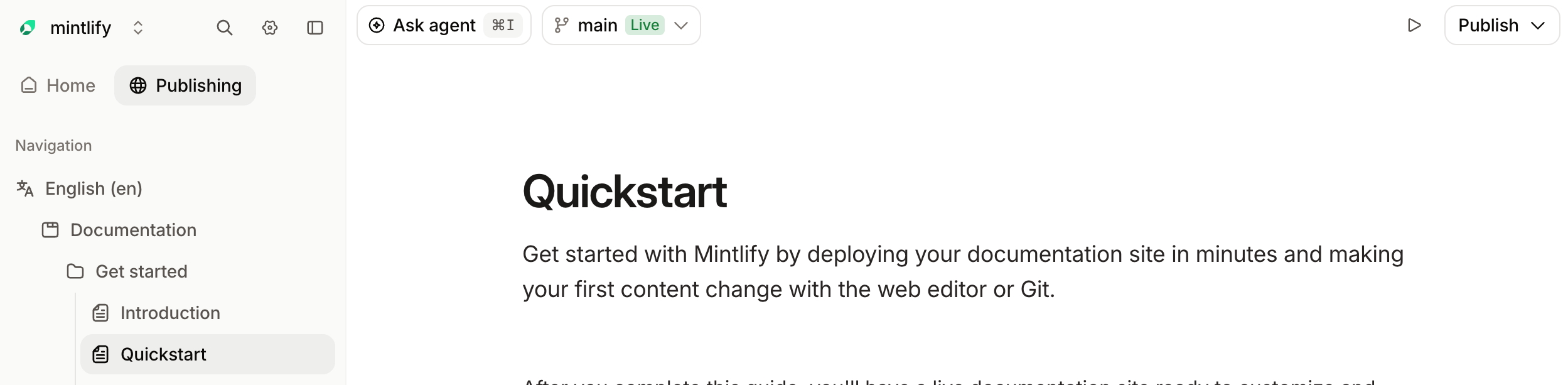
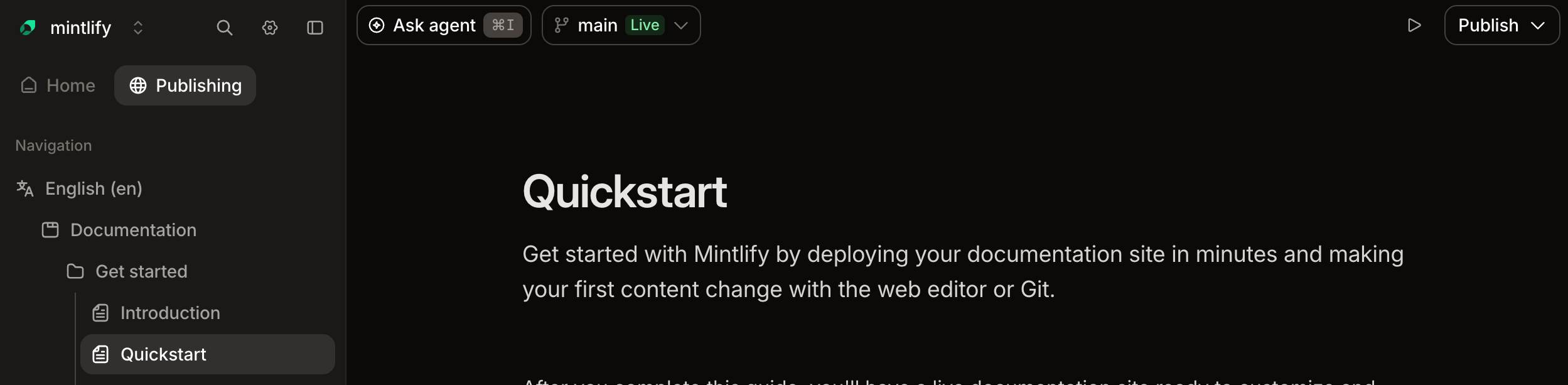 * **Top bar**: Use the top bar to control what branch you work on, access the agent, preview, and publish changes.
* **Sidebar**: Use the sidebar to select pages to edit, create new pages, and manage your site structure.
* **Home**: The file tree for your project. Pages in **Personal** are private to you. Pages in **Workspace** are public to your organization.
* **Publishing**: The navigation structure for your site. Organize pages as you want them to appear in your site.
## Visual and source mode
**Visual mode** renders your page as you type. Press / to open the component menu and insert components.
**Source mode** gives you direct access to the MDX. Use it for precise control over component properties and frontmatter.
Both modes edit the same file. Switch between them with Cmd + Shift + S (macOS) or Ctrl + Shift + S (Windows).
For the components you can insert, see [Components](/docs/components). For MDX syntax, see [Format text](/docs/create/text) and [Format code](/docs/create/code).
## Git concepts
Understanding some Git concepts helps you get the most from the editor.
A saved snapshot of your changes at a point in time, with a message describing what changed. Publishing creates a commit.
A separate line of work. Your live site builds from a **deployment branch**, usually `main`. Other branches—sometimes called **feature branches**—let you work without affecting your live site. Nothing on a feature branch goes live until you merge it.
A proposal to merge one branch into another, so your team can review changes before they go live. Your team reviews and merges pull requests in GitHub, GitLab, or Bitbucket, or [from the editor](/docs/editor/review).
Combining changes from one branch into another. Merging into your deployment branch publishes those changes.
Two branches with incompatible changes to the same lines. To resolve conflicts before merging, the editor prompts you to choose which version to keep.
A comparison between two versions of a file. The editor shows a diff of your pending changes before you publish.
| Action in the editor | Git operation |
| --------------------------------- | ------------------------------------------------------------------- |
| Edit a page | Saves automatically. No commit yet. |
| Publish on your deployment branch | `git commit` and `git push`. Triggers a deployment. |
| Save in branch | `git commit` to the current feature branch. |
| Create pull request | `git push` and opens a pull request against your deployment branch. |
| Merge and publish | Merges the pull request and triggers a deployment. |
| Create a branch | `git checkout -b ` |
| Switch branches | `git checkout ` |
| External push or CLI update | Incoming changes sync into the editor using a three-way merge. |
## Related topics
- [Editor overview](/docs/editor/index.md)
- [Glossary](/docs/reference/glossary.md)
- [术语表](/docs/zh/reference/glossary.md)
* **Top bar**: Use the top bar to control what branch you work on, access the agent, preview, and publish changes.
* **Sidebar**: Use the sidebar to select pages to edit, create new pages, and manage your site structure.
* **Home**: The file tree for your project. Pages in **Personal** are private to you. Pages in **Workspace** are public to your organization.
* **Publishing**: The navigation structure for your site. Organize pages as you want them to appear in your site.
## Visual and source mode
**Visual mode** renders your page as you type. Press / to open the component menu and insert components.
**Source mode** gives you direct access to the MDX. Use it for precise control over component properties and frontmatter.
Both modes edit the same file. Switch between them with Cmd + Shift + S (macOS) or Ctrl + Shift + S (Windows).
For the components you can insert, see [Components](/docs/components). For MDX syntax, see [Format text](/docs/create/text) and [Format code](/docs/create/code).
## Git concepts
Understanding some Git concepts helps you get the most from the editor.
A saved snapshot of your changes at a point in time, with a message describing what changed. Publishing creates a commit.
A separate line of work. Your live site builds from a **deployment branch**, usually `main`. Other branches—sometimes called **feature branches**—let you work without affecting your live site. Nothing on a feature branch goes live until you merge it.
A proposal to merge one branch into another, so your team can review changes before they go live. Your team reviews and merges pull requests in GitHub, GitLab, or Bitbucket, or [from the editor](/docs/editor/review).
Combining changes from one branch into another. Merging into your deployment branch publishes those changes.
Two branches with incompatible changes to the same lines. To resolve conflicts before merging, the editor prompts you to choose which version to keep.
A comparison between two versions of a file. The editor shows a diff of your pending changes before you publish.
| Action in the editor | Git operation |
| --------------------------------- | ------------------------------------------------------------------- |
| Edit a page | Saves automatically. No commit yet. |
| Publish on your deployment branch | `git commit` and `git push`. Triggers a deployment. |
| Save in branch | `git commit` to the current feature branch. |
| Create pull request | `git push` and opens a pull request against your deployment branch. |
| Merge and publish | Merges the pull request and triggers a deployment. |
| Create a branch | `git checkout -b ` |
| Switch branches | `git checkout ` |
| External push or CLI update | Incoming changes sync into the editor using a three-way merge. |
## Related topics
- [Editor overview](/docs/editor/index.md)
- [Glossary](/docs/reference/glossary.md)
- [术语表](/docs/zh/reference/glossary.md)